Chainaxe Build Guide
The easiest build — pre-flashed board, pre-soldered cables. No soldering, no programming. Just assemble and go.
Printing
All parts are designed to print without supports — where supports are needed, they are already integrated into the model and will need to be removed during assembly (more on this in the Assembly section).
A ready-to-print Bambu Lab project file is provided with all parts pre-arranged on build plates. Each plate is named after the assembly it belongs to: Handle, Blade, Body, etc. The parts are already oriented in the correct printing position — just slice and print.
Print Settings
Minimum settings for all parts: 2 walls, 10% infill.
Exception — Chainax_Body part: print with minimum 3 walls and 30% infill. This part bears higher mechanical loads from the motor and gearbox.
Material
Any common filament will work: PLA, PETG, or ABS. There is no significant difference in performance for this project — choose whatever you are most comfortable printing with.
You’ll need at least 2 kg of filament for printing; it’s better to take extra in case of defects.
Where more than one copy of a part is needed, the quantity is indicated in the file name.
⚠ CHAIN ELEMENT COUNT
Demon Axe style: 36 chain elements
Viking Axe style: 38 chain elements
Parts Assembly
At this stage, all components should be printed and prepared. For all axe styles, most of the steps are the same; wherever the assembly process differs, it will be indicated.
Gearbox Assembly
The gearbox is the mechanical heart of the chainaxe — it transfers motor power to the chain. Take your time with this section and make sure all gears spin freely before moving on.
01 Prepare the gears
Remove any support material or debris from the bearing seats on each gear. The bearing pockets must be clean for the bearings to seat properly.
02 Install the bearings
Press the bearings into each gear — two bearings per gear, one on each side. If they don't slide in easily, use a flat surface or a clamp to press them in evenly. Do not hammer them — apply steady, even pressure. Total: 4 bearings across 2 gears.
03 Attach the small gear to the motor
Look at the motor shaft — you will see a flat section (a "D-cut" or flat). The small gear has a matching flat inside its bore. Align the flat on the shaft with the flat inside the gear and press the gear all the way down onto the shaft. The gear also has two holes on its face — insert M4 grub screws into these holes and tighten them fully. This locks the gear to the shaft.
04 Mount the motor to the body
On the gear, there are cylindrical recesses — align these recesses with the mounting holes on the motor bracket. It is recommended to apply threadlocker to all motor and gear mounting screws. Use blue threadlocker (such as Loctite Blue 242) — this allows you to unscrew them later if needed, unlike red which is permanent.
Insert the screw with threadlocker and fasten the motor to the body. On the opposite side, there is a window for the second mounting screw — insert the screw through this window. There is also an access hole in the body to reach it with an Allen key. Tighten the second screw through this hole.
05 Install the M4 nuts
Insert two M4 press-fit nuts into the dedicated slots on the body. Push them in firmly until they sit flush.
06 Install the large gears
Place the two gears into their slots on the body, oriented as shown in the photo. Apply a small amount of threadlocker to the tips of two M4x20 screws. Insert the screws through the gears and into the M4 nuts, then tighten.
Do not overtighten. Check that all gears spin freely by hand. They will feel slightly stiff because you are also turning the motor through the gear train — this is normal. But they must be able to rotate when turned by hand.
07 Install additional nuts for the cover
On the body, there are two additional slots for M4 nuts, one on each side. Press the nuts into these slots until the thread is visible through the screw hole. These will be used later to secure the gearbox cover.
Tensioner Assembly
01 Install the bearing into the tensioner gear
02 Insert the M4 nut into the tensioner body
Take the tensioner body and press an M4 nut into the dedicated slot. Push it in until the thread is visible through the hole on the other side.
03 Insert the M4 nut into the tensioner tip
04 Mount the gear onto the tensioner
Place the gear with the bearing onto the rotation axis of the tensioner. Apply threadlocker to an M4x20 screw and drive it through the gear into the tensioner axis, as shown in the photo. Do not overtighten — the gear must spin freely on the bearing.
Blade Assembly
This section has style-specific steps. Follow the instructions for your blade style, then continue with the common steps at the end.
— DEMON AXE STYLE —
01 Route the motor wires
02 Insert the gearbox
Insert the gearbox into the blade from the top, aligning the mounting holes on the gearbox with the holes on the blade. Be careful not to pinch the motor wires where the motor enters the hole — gently pull the wires through from below as you push the gearbox in.
03 Secure the gearbox
04 Route the motor cable
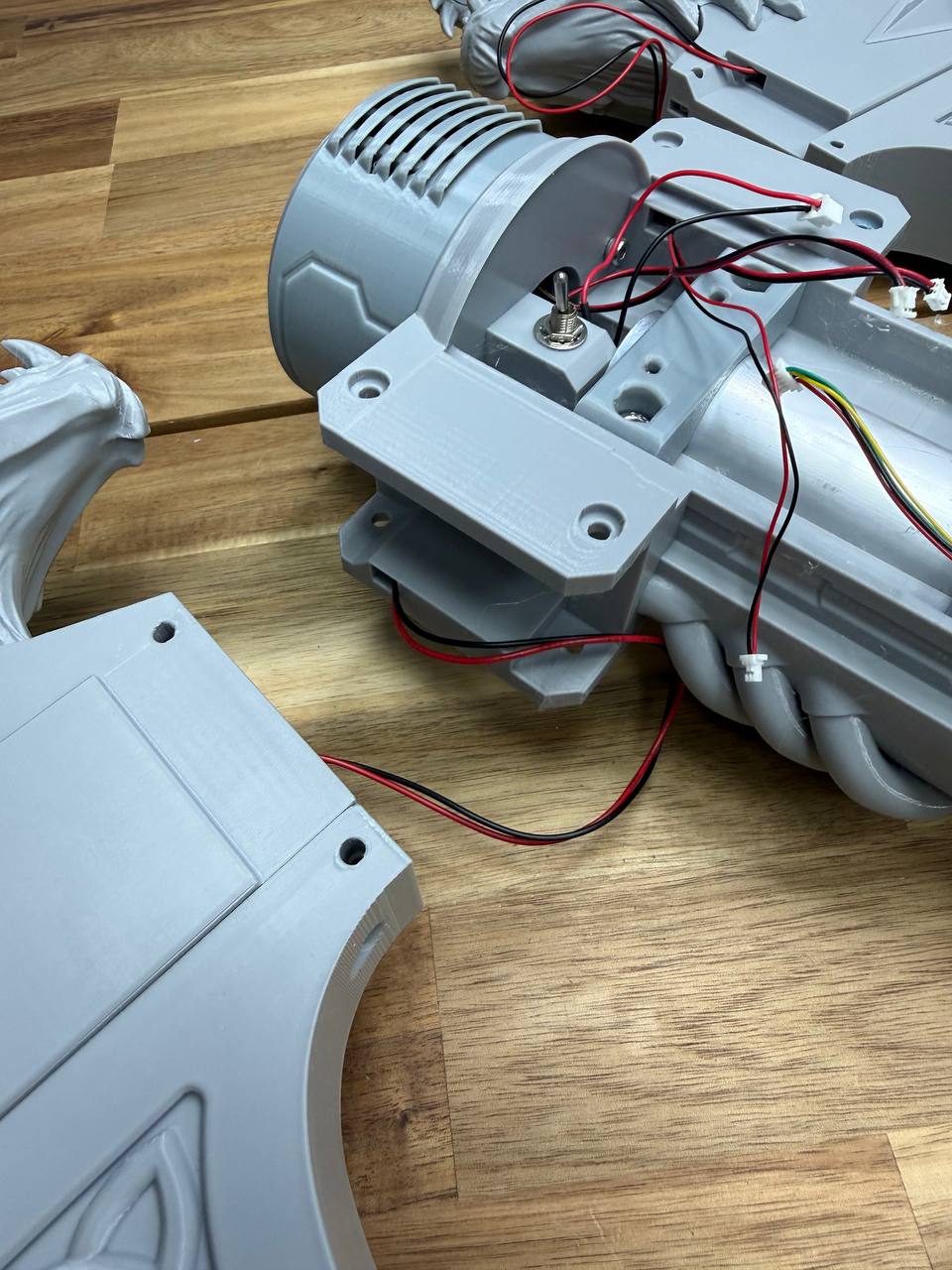
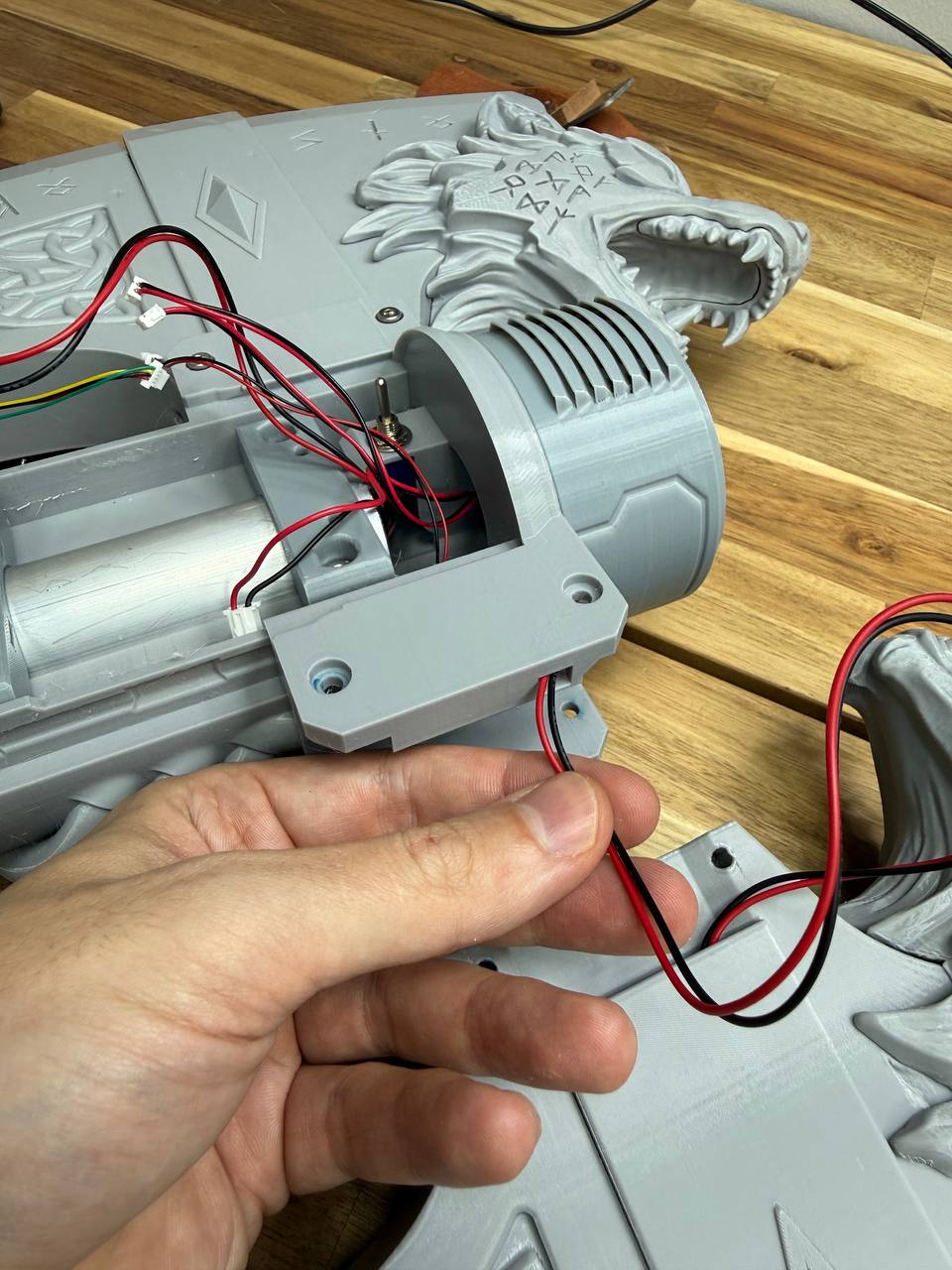
Push the motor wire into the cable channel inside the blade. Thread it all the way through and pull it out the other end completely. Tuck the wire neatly into the channel so it does not hang loose.
05 Install decorative overlays
Insert two M4 nuts into the slots on one side of the blade, and two more M4 nuts into the slots on the opposite side. Attach the rear decorative overlay with two M4x20 screws. Attach the front decorative overlay with two M4x20 screws.
— DEMON AXE STYLE —
01 Insert the gearbox
Insert the gearbox from the bottom side of the blade, aligning the mounting holes on the gearbox with the holes on the blade.
02 Secure the gearbox
03 Prepare the wolf head overlay
The wolf teeth are printed as separate pieces for better print quality. Glue the teeth onto the wolf head first. You can then glue the completed wolf head onto the blade now, or leave it for later — it is easier to paint the blade and the wolf head separately before gluing them together.
— ALL STYLES — COMMON STEPS —
06 Install nuts in the upper blade half
Insert three M4 nuts into the upper blade half. Push them in until the thread is visible through the screw holes.
07 Install nuts in the lower blade half
08 Install the tensioner nut
Inside the lower blade half, there is a slot for an M4 nut that secures the tensioner. Insert the M4 nut and tighten it fully.
09 Install the tensioner
10 Install the tensioner spring
Thread an M4x8 screw through the spring, then guide the spring end into the mounting hole on the tensioner. Begin tightening the screw, but do not tighten it fully yet — you need to redirect the spring inward first by rotating it into position. Once the spring is turned inward, align the spring loop with the spring mounting hole in the blade body.
Insert an M4x16 screw through the hole and the spring loop, then begin tightening. If the spring starts to bend or shift, hold it in place with your finger while tightening. Tighten both screws fully so the spring sits straight, as shown in the photo.
11 Join the blade halves
Double-pressing the button, then waiting 1 second, will invert the direction of the chain movement. You can also invert the direction in the app.
Alex Geek Board Installation & Wiring
All connectors on the Alex Geek Board are keyed — each connector has a unique size and shape, so it can only be inserted into the correct port. It is impossible to mix up buttons with speakers or motors. There is also only one way to insert each connector, so polarity cannot be reversed.
01 Mount the board
Place the Alex Geek Board against the bottom face of the board holder. Align it with the mounting clips and press firmly until the board snaps into the locking tabs.
02 Prepare the board holder
Take the board holder and thread all cables through it except the display cable — this makes cable routing easier in the following steps. Attach the board holder to the bracket and secure it with four M3 by 16mm screws.
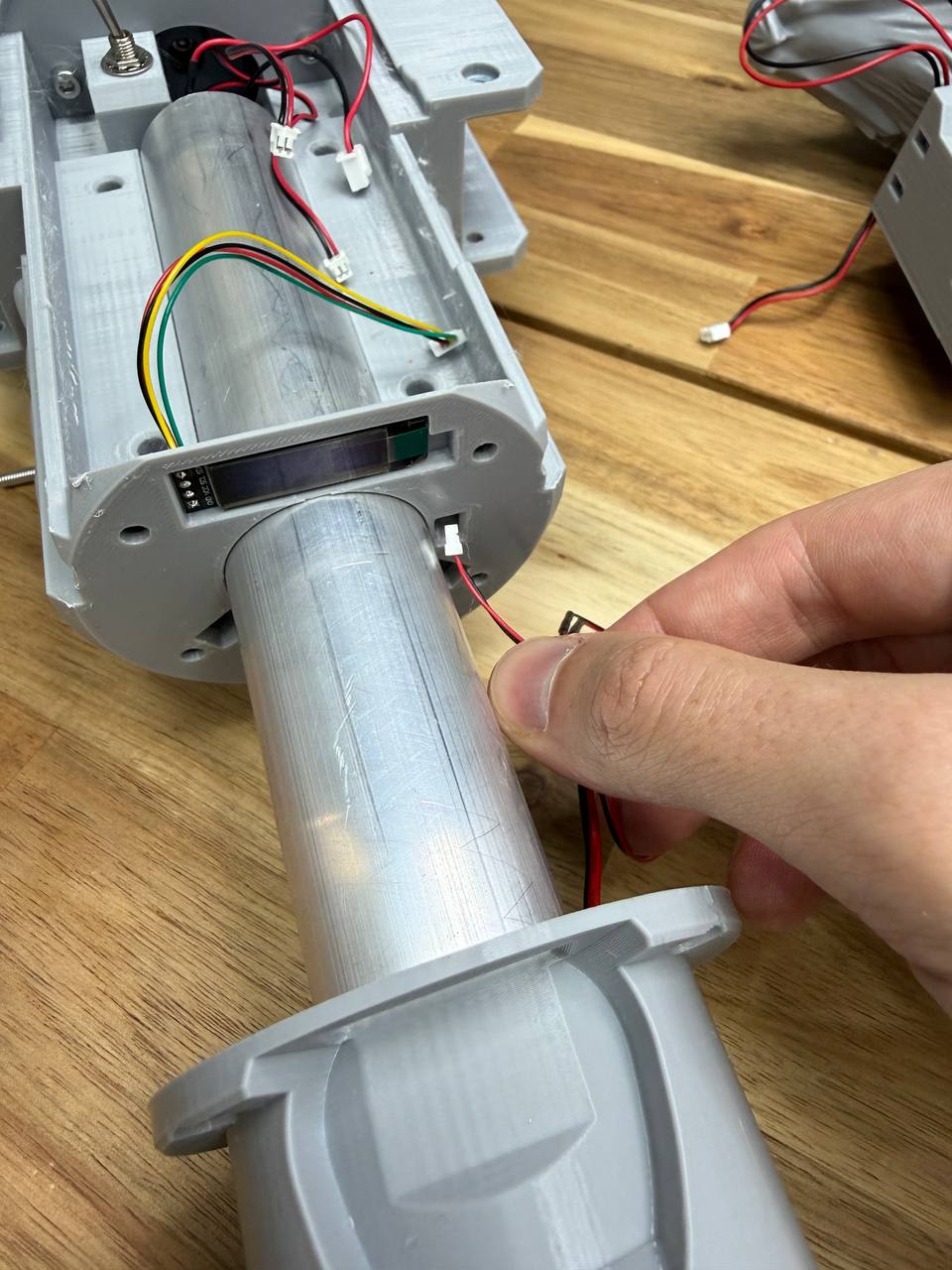
03 Connect the display
Thread the display cable through the dedicated cable window. If the cable is too long, you can loop it through the second window to take up the slack. Insert the display connector into the I2C1 port, as shown in the photo.
04 Connect the power cable
Thread the power cable (the largest connector) through the cable window and insert it into the PWR (Power) port.
05 Connect the speakers
Thread the speaker wires through the same cable window as the power cable. The speaker connectors are two identical medium-sized plugs. Insert them into the two ports labeled Speaker.
06 Connect the trigger button
Thread the smallest cable (smallest connector) through the cable channel and plug it into the Button1 port.
07 Connect the motor
Thread the motor cable (medium-sized connector) through the same channel as the speakers and power cable. Insert it into the Motor1 port.
Basic operation
01 Insert batteries and power on
Take three standard AA battery holders. Insert the batteries with the negative (−) end on the spring and the positive (+) end on the flat contact — the same way you would insert batteries into any device. Assemble three holders with three batteries each.
Insert the battery holders into the battery compartment as shown in the photo, with the spring (positive) side facing toward the positive (+) contact of the compartment. Insert all three, then slide the battery compartment into the handle and secure the end cap.
Mobile App Guide
This section applies to the Alex Geek Board Kit builds only.
02 Test the device
Turn on the device using the power switch shown in the photo. You can now control the motor by pressing either the upper or lower trigger button — both will activate the chain. If you built the single-button option, only the upper trigger will function.
02 Connect to your device
Your device will appear in the list of available Bluetooth devices. Tap on it to connect. You will be taken to the main device screen.
03 Telemetry
At the top of the screen you will see live telemetry data: current (A), voltage (V), and power (W).
04 Battery setup
Below the telemetry you will see the battery charge level. It is important to select the correct battery configuration for accurate charge percentage readings, as different battery types have different voltage ranges.
| Axe Battery Options | Sword Battery Options |
|---|---|
| 9× AA Lithium | 8× AA Lithium |
| 9× AA NiCd (Nickel-Cadmium) | 8× AA NiCd (Nickel-Cadmium) |
| 3× 18650 Lithium | 2× 18650 Lithium |
Select the option that matches your actual battery setup.
05 Motor control
You can adjust the motor RPM speed and reverse the rotation direction.
06 Audio control
You can adjust the device volume level from within the app.
07 Firmware update (OTA)
If a firmware update is available, you will see a notification at the bottom of the screen along with a brief changelog. To update:
- Tap Update Firmware
- A Wi-Fi credentials dialog will appear — enter your Wi-Fi network name and password. The board will connect to this Wi-Fi network to download the new firmware from the internet.
- Tap Connect & Update
- The download will begin. You can also monitor the progress on the prop's OLED display.
- Once the download and installation are complete, the app will return to the initial scanning screen. Reconnect to your device.
Note: a new firmware version may require an updated version of the app. Make sure to keep the app updated as well.
Painting
This section is currently under development. A more detailed painting guide may be added in the future. Below are the key points to keep in mind when painting your axe.
⚠ Important — protect moving parts
Do not apply primer or paint to the chain, chain guides, or any moving surfaces. Paint is a sticky substance — if it gets on the guide rails, the chain will stick or rotate poorly due to increased friction between the links. This can lead to motor overheating and potential electronics failure.
Before painting, cover all internal surfaces and guide rails with masking tape. If paint accidentally gets on the guides or chain, make sure to thoroughly clean it off. The chain must rotate freely and slide along the guides without resistance.
Painting the chain
Paint the chain elements either separately before installation, or very carefully while installed — making sure that primer and paint do not get inside the links where they slide against each other.
Surface preparation
Sand the plastic surface before painting to improve adhesion. You can then apply a filler primer or automotive putty to smooth out layer lines.
An excellent alternative for smoothing print layers is UV resin. Apply a thin coat of photopolymer resin to the surface, then gently heat it with a heat gun or torch to remove air bubbles. Cure it under a UV lamp. Sand away any drips or uneven spots, then apply primer followed by paint.
Paint options
You can use acrylic craft paints or automotive spray paints. I typically use FolkArt acrylic paints — they come in larger bottles compared to modeling paints, making them a good option in terms of both price and quality. Spray cans also work well, especially for base coats and large surfaces.
Always apply primer before painting, regardless of which paint type you choose.